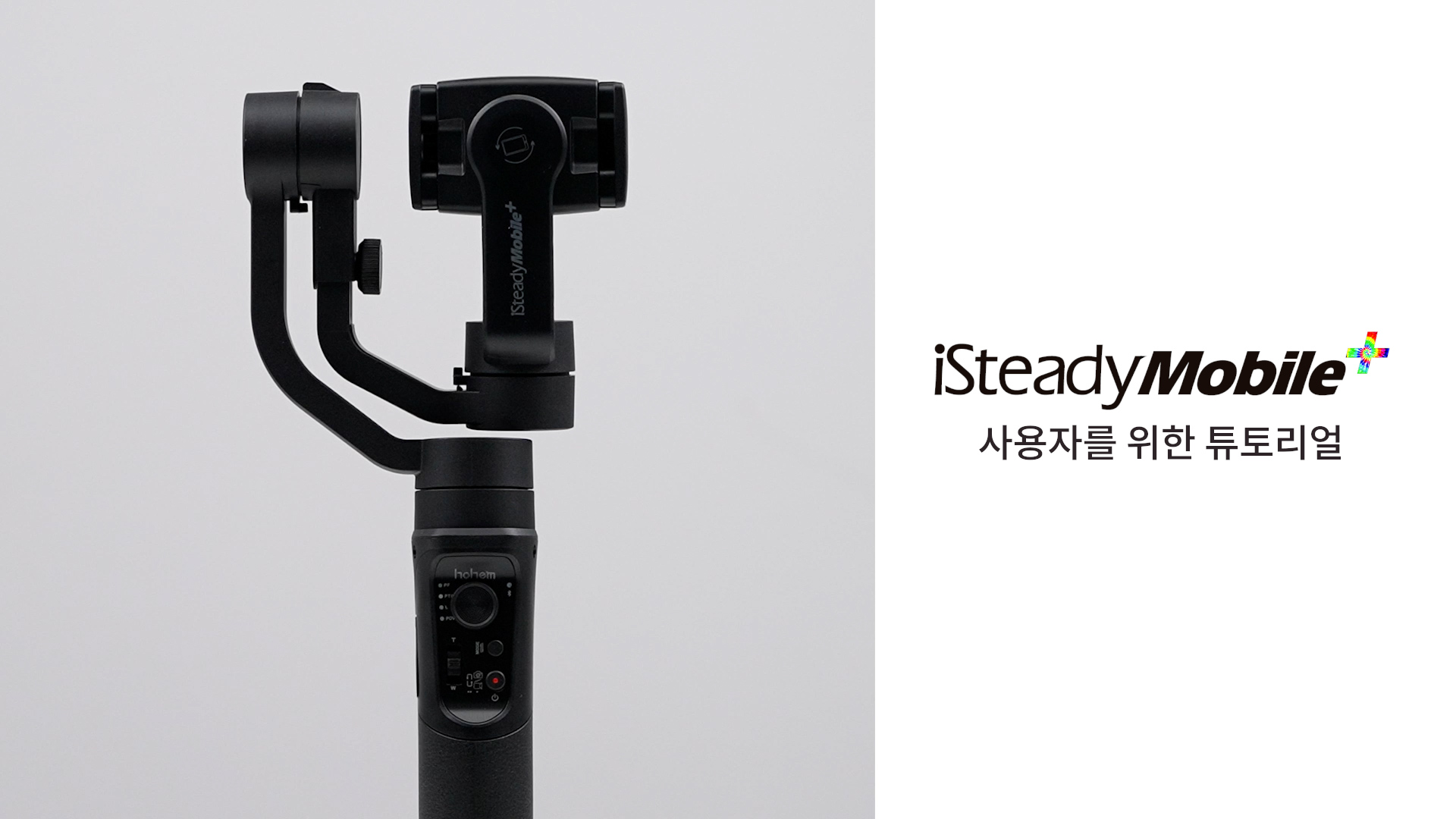
iSteady Mobile+ · 튜토리얼




 Aliexpress
 Hohem 공식 매장



 기타 언어
기타 언어The gimbal will automatically power off if no phone is installed or the phone is not properly balanced (causing motor overload). You will hear a "beep" sound as a warning before it shuts down. Make sure to install and balance the phone correctly before turning on the gimbal (see the First Use section for details).
Clear the Bluetooth connection and try reconnecting:
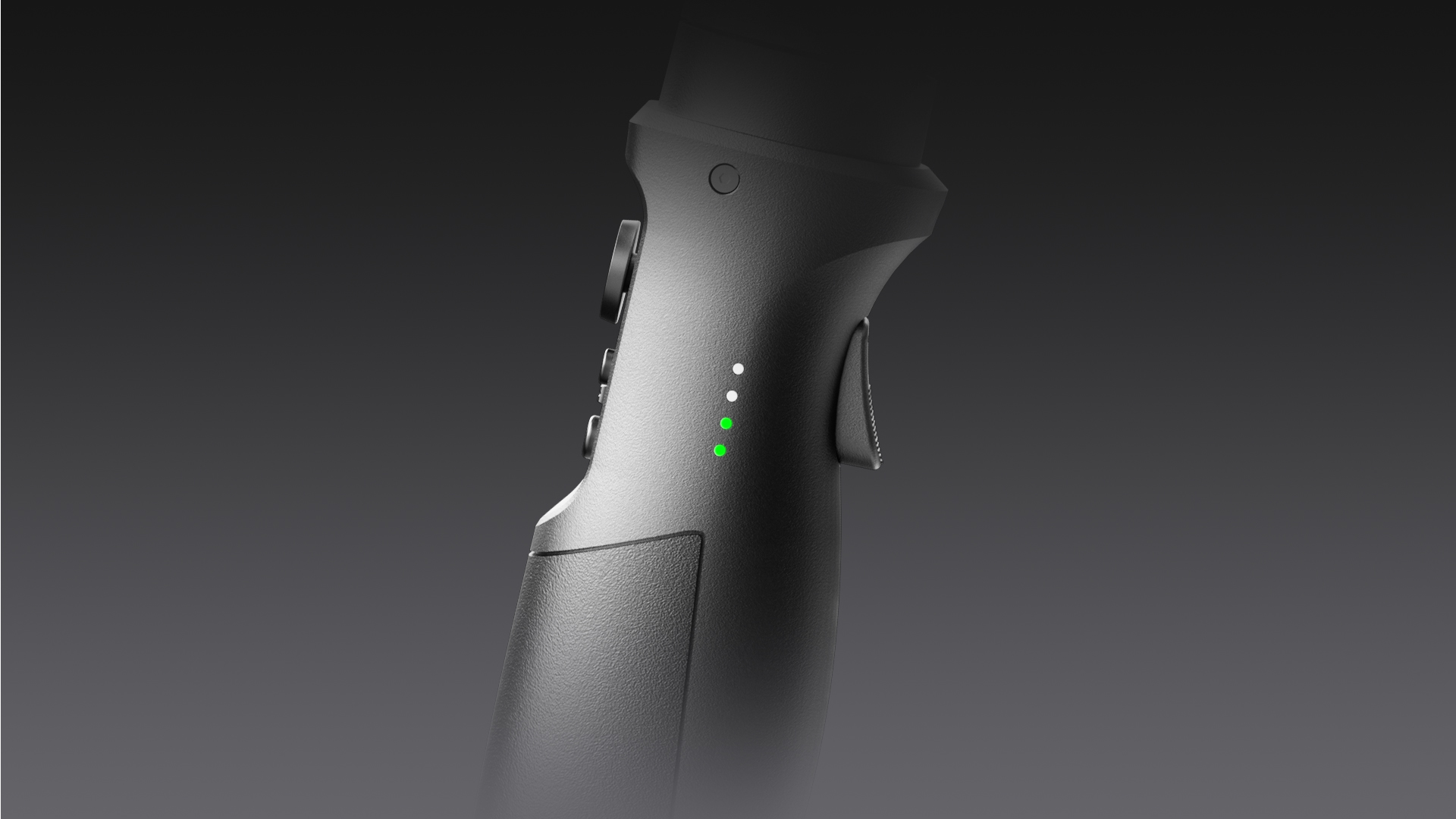
Push the zoom lever upwards and simultaneously long-press the M button for 5s. When the Bluetooth indicator flashes green five times, it means the Bluetooth connection has been cleared. You can then follow the Bluetooth connection steps to connect again.
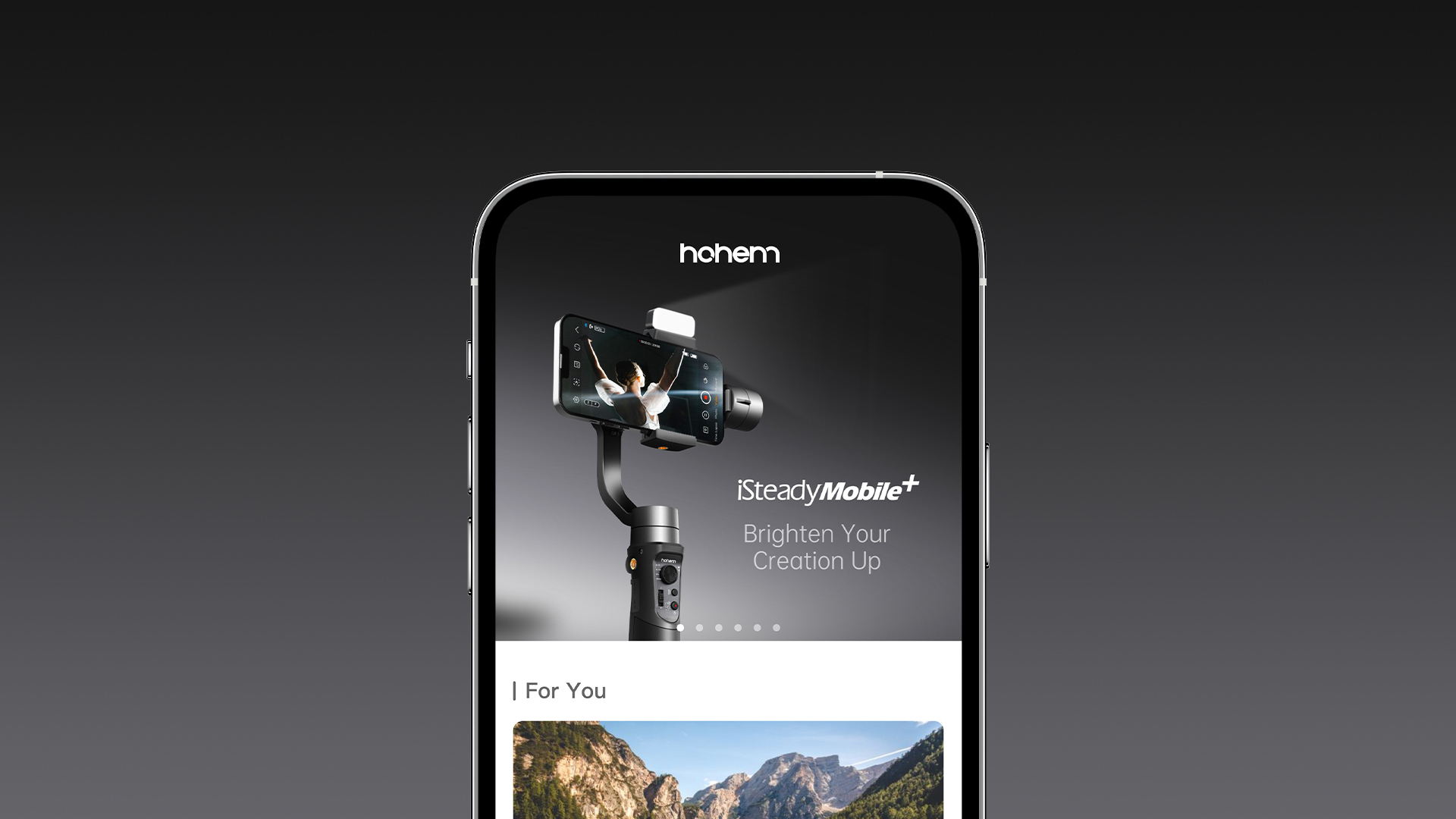
This function is available exclusively through Hohem Joy App.
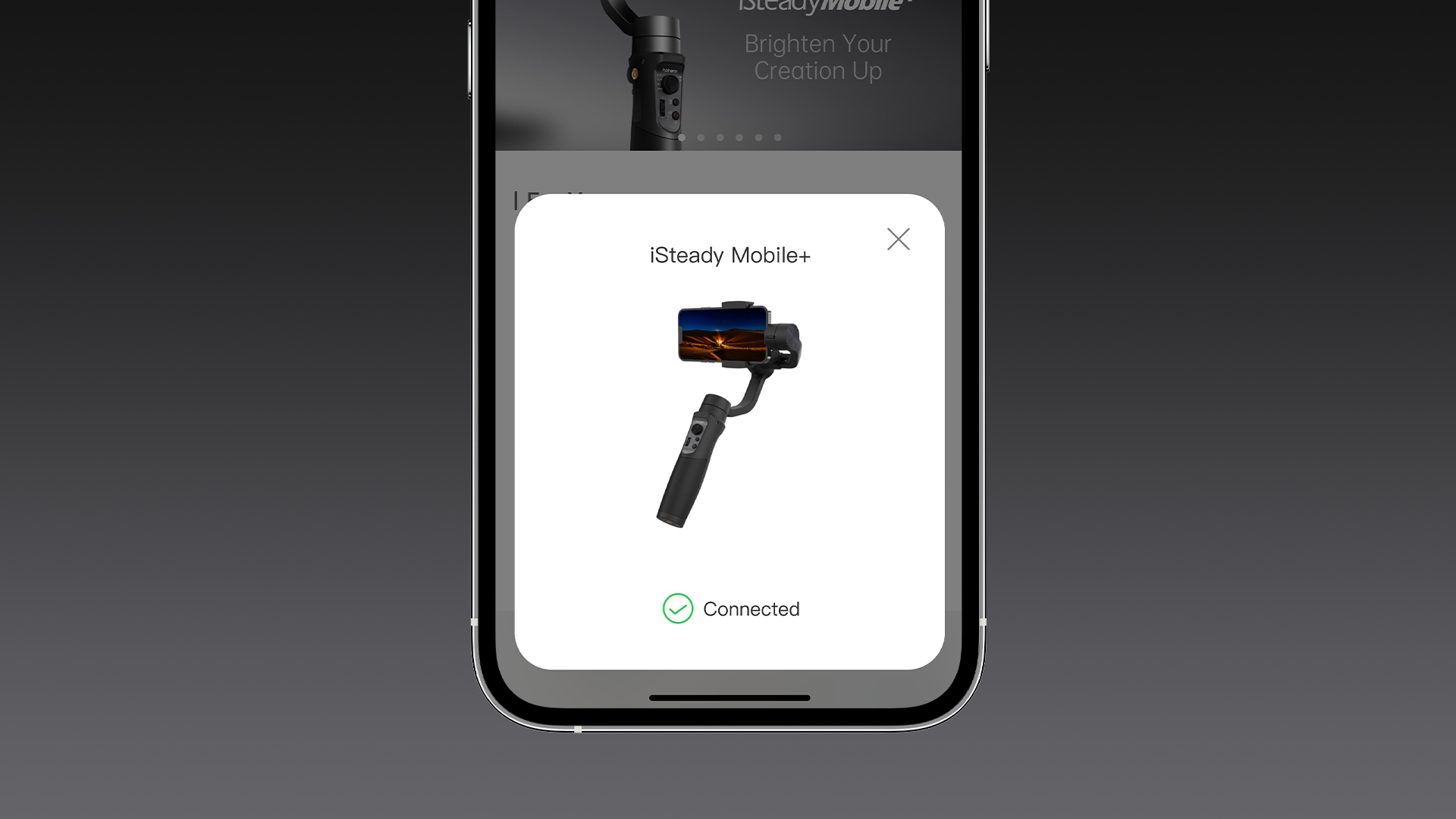
A. Ensure that your phone is connected to the gimbal via Bluetooth.
B. Enter Hohem Joy App, open the camera, tap the tracking icon on the top and select face tracking.
C. Tap the gesture icon on the right to enable the gesture control.
D. Use this gesture for shutter control of taking photo/video, and use this gesture
 to end video recording.
A. Ensure that the gimbal is powered on.
B. Press the trigger on the back side four times to enter ultra wide angle mode.
*Only landscape mode supports switching to ultra wide angle mode.
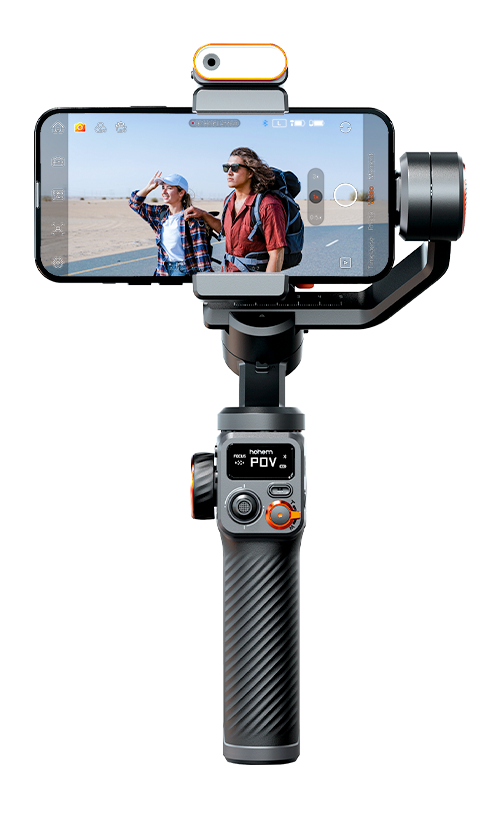
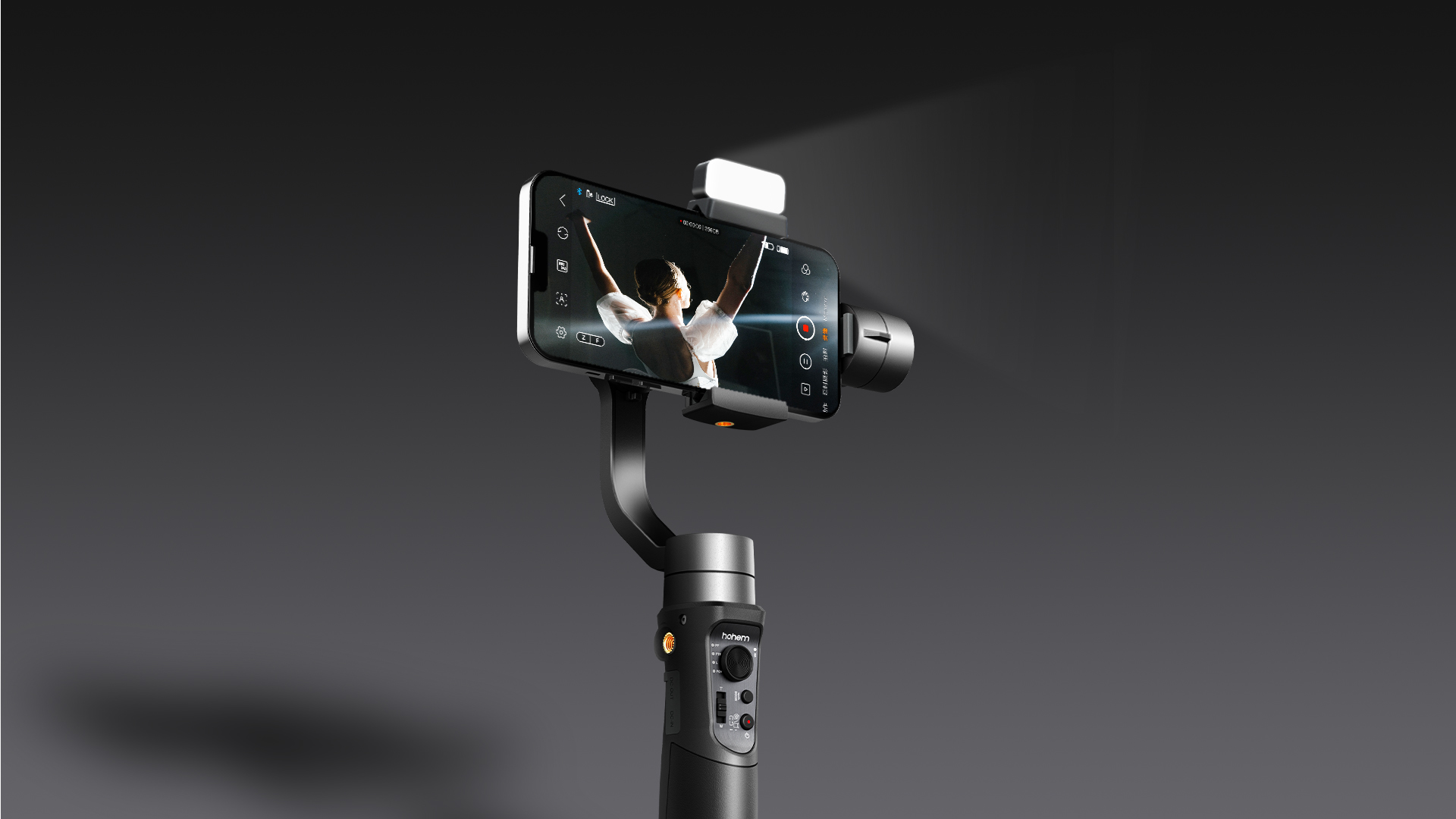
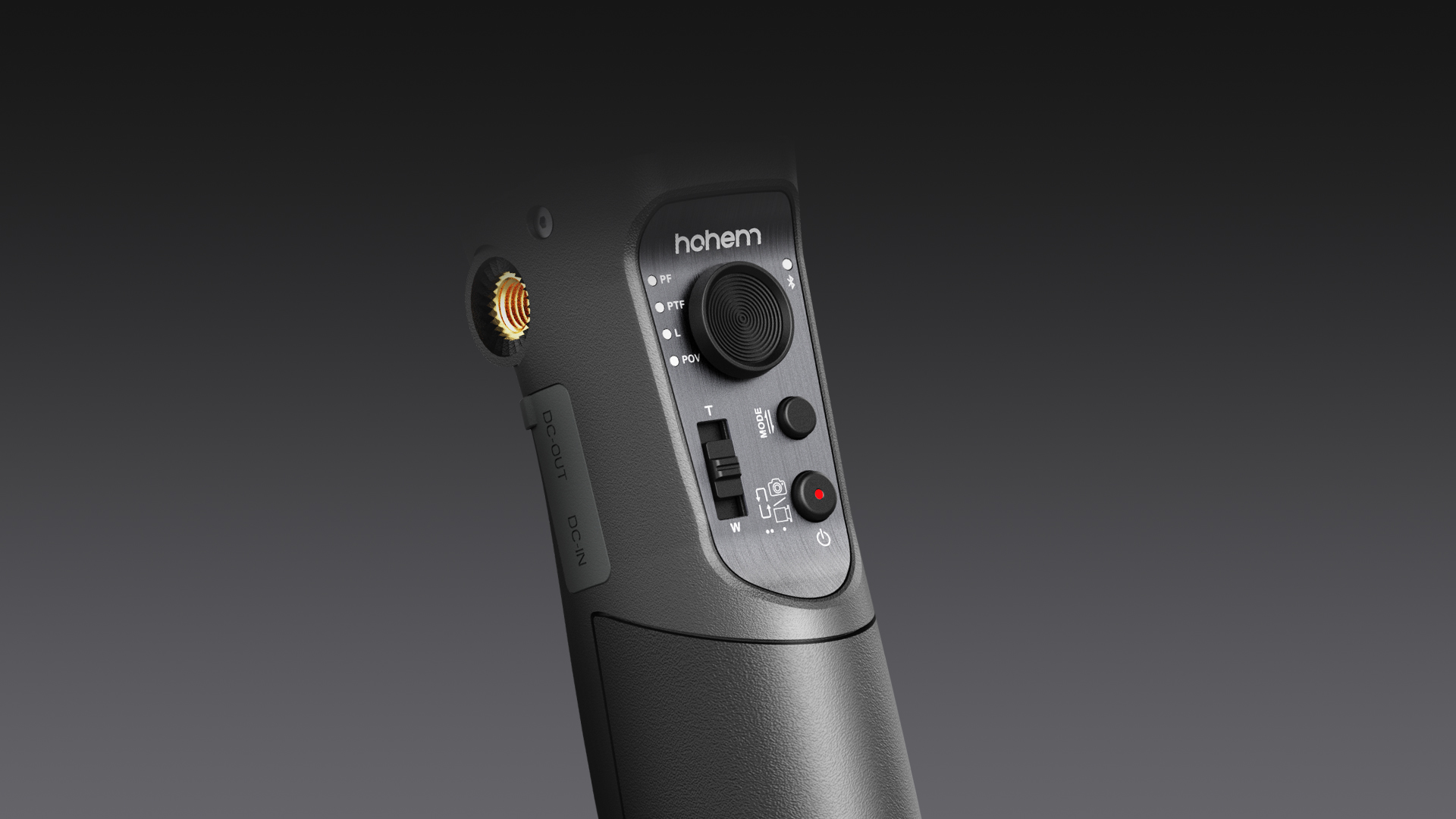
A. Pan Follow Mode (PF)
Roll and Tilt axes are locked. The gimbal allows the phone to pan left or right smoothly following the operator's movements, while maintaining a steady tilt and roll position.
B. Pan and Tilt Follow Mode (PTF)
Roll axis is locked. This mode enables the phone to follow the operator's pan (left/right) and tilt (up/down) movements, offering more dynamic control over the framing.
C. Point of View Mode (POV)
All three axes (Roll, Pan, and Tilt) are active. This mode allows the phone to follow the operator's movements in all directions, It offers a 'first-person' perspective, capturing footage as if the viewers are seeing through the operator's eyes.
D. All Lock Mode (L)
All three axes (Roll, Tilt, and Pan) are locked. The phone's orientation remains fixed regardless of the gimbal's movements.
*Zoom function is available exclusively through Hohem Joy App and some Android phones.
A. Ensure that Bluetooth is connected.
B. Enter Hohem Joy App and open the camera.
C. Push the slider up to zoom in, and push it down to zoom out.
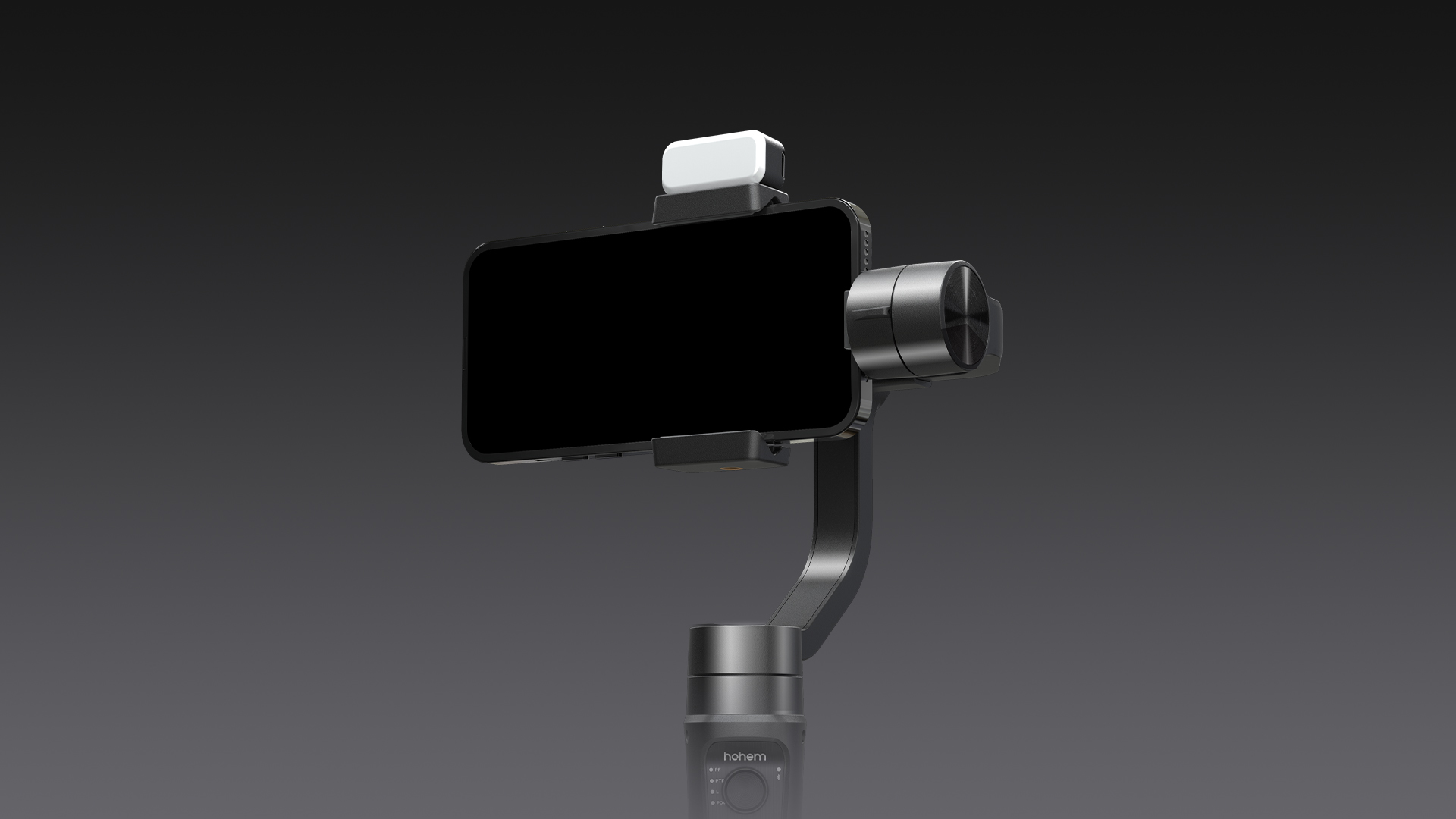
Ensure that the phone is attached tightly and horizontally, and you can solve the problem in the following two ways:
A. While keeping the phone balanced, move it appropriately to the left in landscape mode and up in portrait mode.
B. Press the trigger on the back side four times to enter ultra wide angle mode.
* The remote controller is an optional accessory and needs to be purchased separately.
Switch the remote to "OFF". Press the M button seven times to enter the remote controller pairing mode (at this point, the Bluetooth indicator will alternate between yellow and green). Switch the remote to "ON," and it will automatically connect to the gimbal. When you press buttons on the remote controller, and the gimbal's Bluetooth indicator flashes yellow, it indicates a successful pairing.





 기타 언어
기타 언어








서비스에 전화하기
US+1 (888) 965 8512
구독
 简体中文
简体中文 English
 Deutsch
 Italiano
 日本語
日本語 한국어
한국어 Français
 Español
 Pусский
 Português