iSteady X3 & X3 SE · Tutorial




 Aliexpress
 Hohem Loja oficial
 简体中文
简体中文 English
 Deutsch
 Italiano
 日本語
日本語 한국어
한국어 Français
 Español
 Pусский
 Português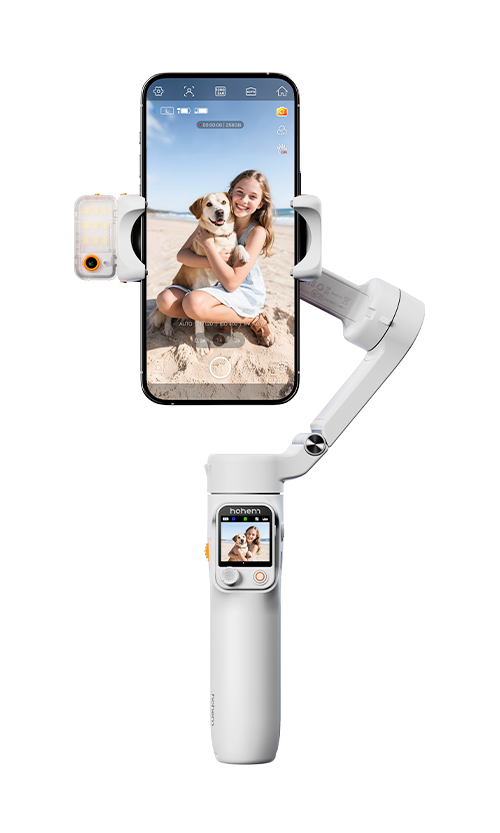



 Outros idiomas
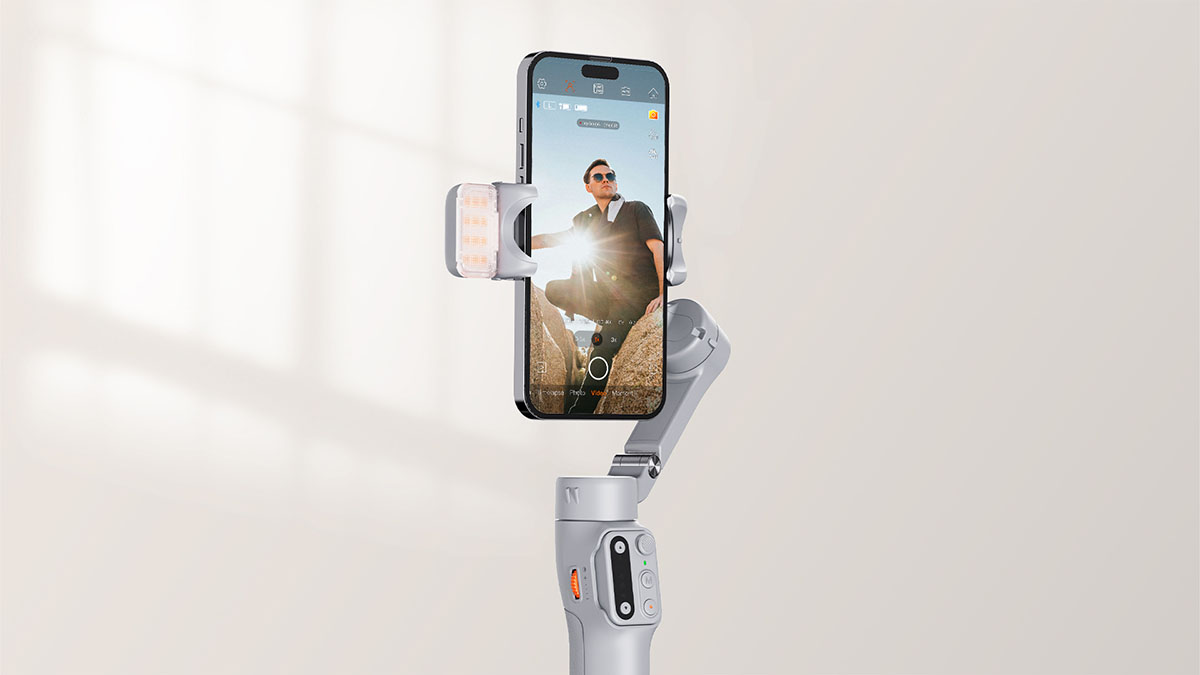
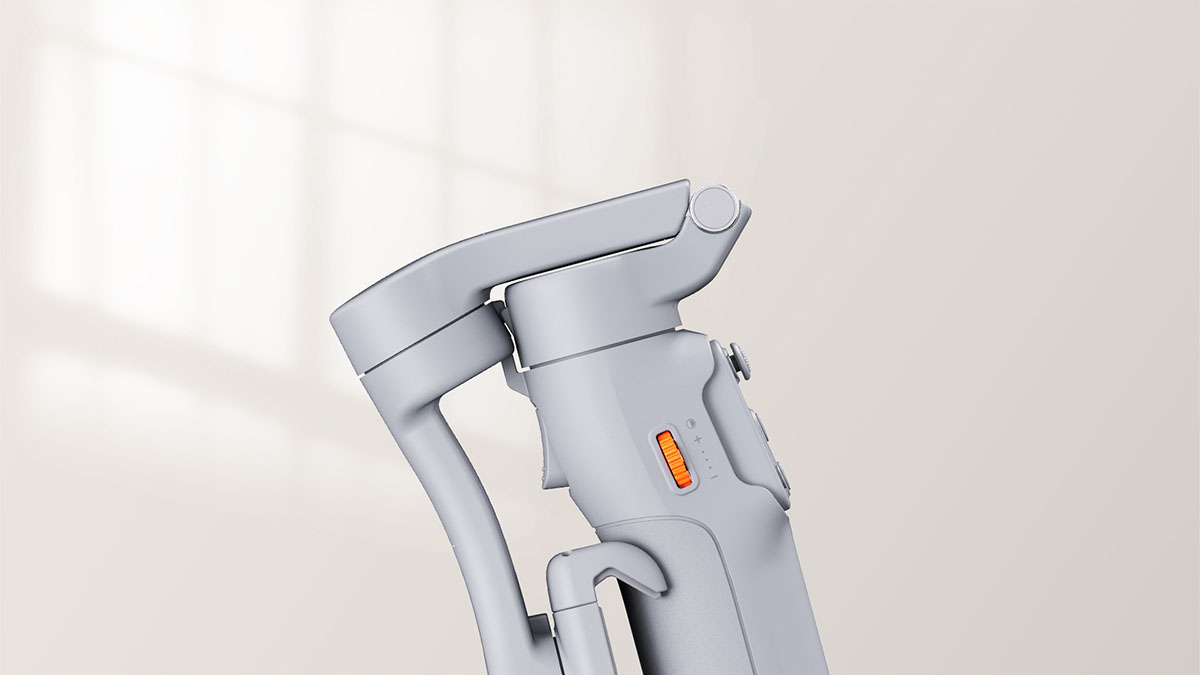
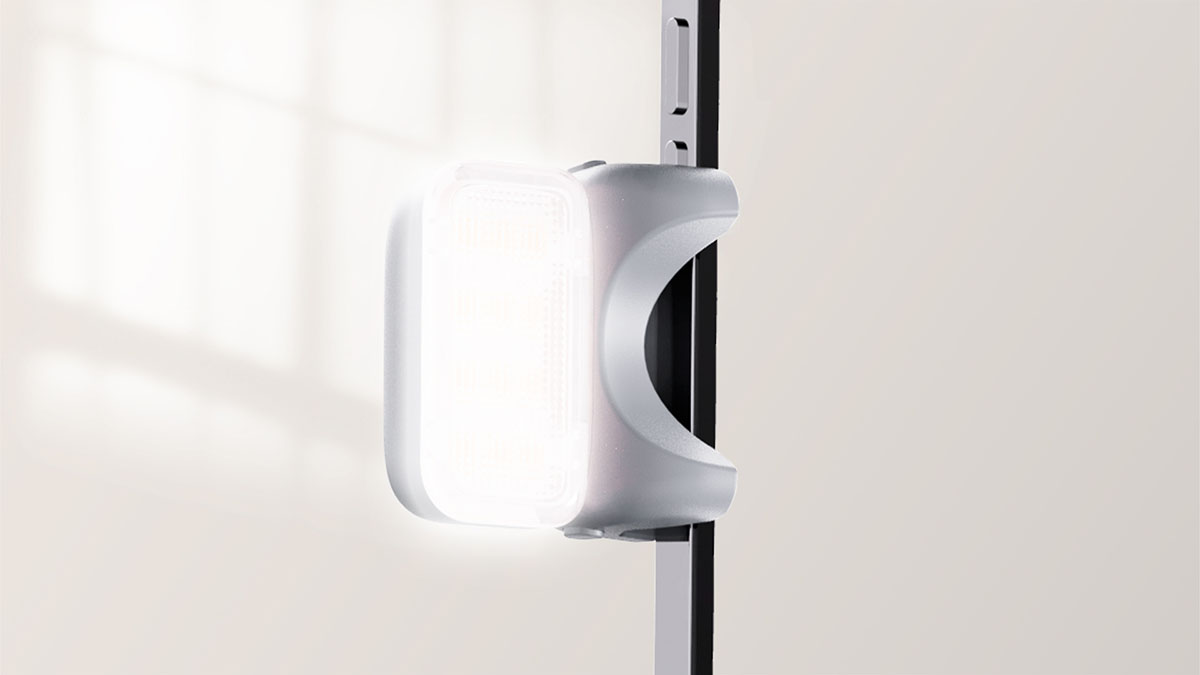
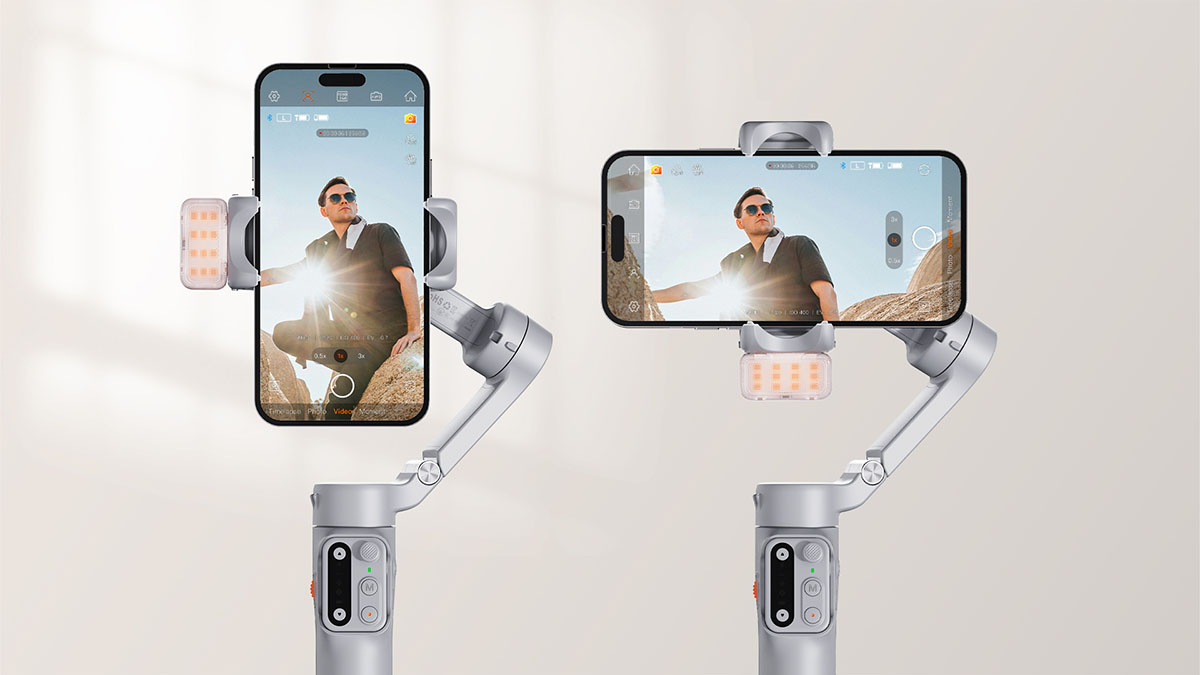
Use the side wheel to control the fill light as follows:
Long press: turn on/off the fill light.
Double press: switch color temperature between cold light, neutral light and warm light.
Scroll up/down: increase/decrease brightness.
iSteady X3 or iSteady X3 SE is equipped with 1100mAh battery, which can last for 11 hours when the gimbal is placed aside in well-balanced state, and 4 fours when the fill light is at the maximum brightness.
*Data sourced from Hohem Laboratory for reference only.
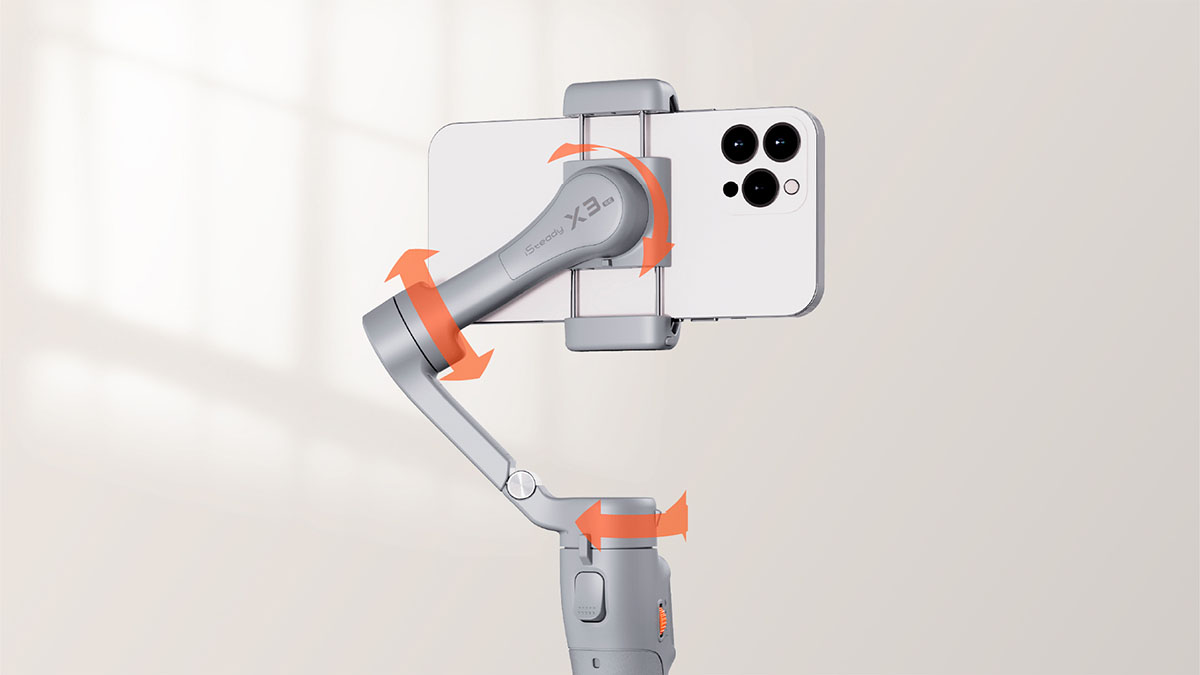
Please observe whether the phone clamp is horizontal or not, if not you can press the M button five times to start auto calibration; if the phone clamp is horizontal, you need to remove the phone case or re-attach your phone.
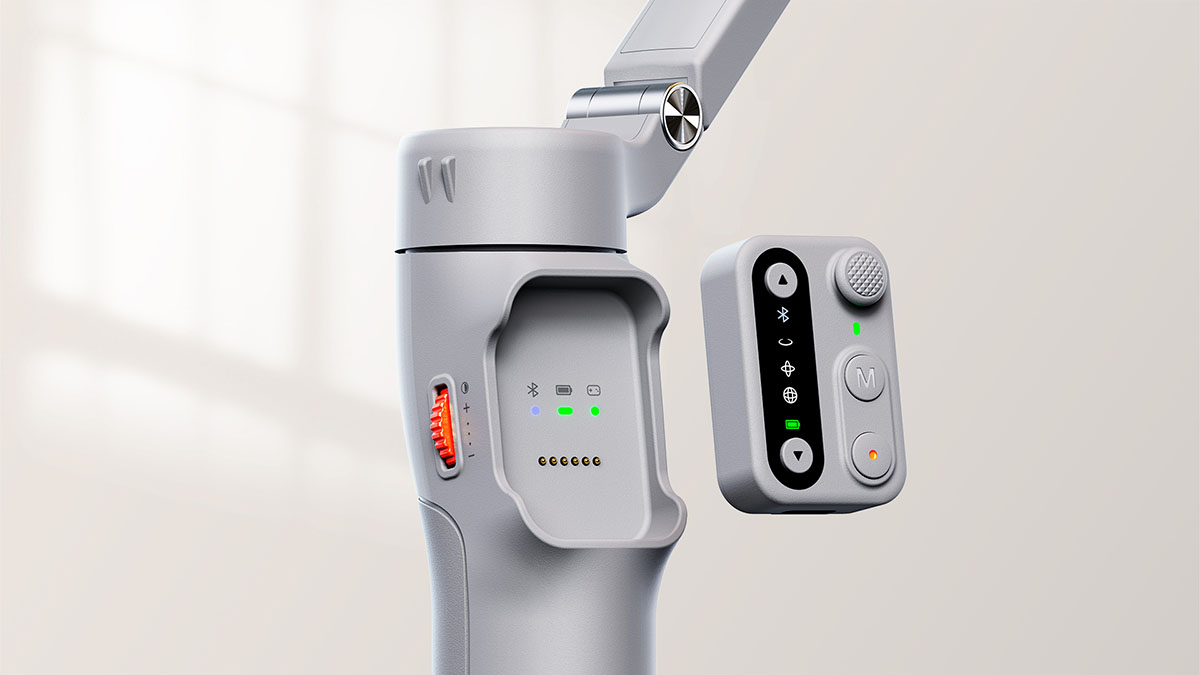
Please check if there is any foreign matter on the pogo pins. You can use a dry cloth to wipe them clean before reattaching the AI tracker or remote control.
Method 1: Attach it to the handle, so that the gimbal can automatically charge the remote.
Method 2: Use a USB-C cable to charge the remote through its Type-C charging port.
Remote on handle: The remote will be powered on and paired automatically once the gimbal is turned on.
Remote detached: The remote needs to be powered on separately by long pressing the shutter button, and it will automatically pair with the gimbal upon powering on.
If you clear the remote connection during use, simply place it back on the handle, and it will automatically reconnect to the gimbal.
*iSteady X3 supports startup shooting orientation setting, while iSteady X3 SE DOES NOT have this setting.
The gimbal defaults to portrait mode for your smartphone. If you usually use the landscape mode, you can set the startup shooting orientation in Hohem Joy App as follows:
1. Ensure that the Bluetooth is connected.
2. Enter Hohem Joy App, open the camera and click "Settings".
3. Click "Gimbal Parameter Settings".
4. Click "Startup Shooting Orientation" to set the mode. The gimbal will default to the selected orientation on the next startup.
1. Ensure that the Bluetooth is connected.
2. Enter Hohem Joy App, open the camera and click "Settings".
3. Click "Gimbal Parameter Settings".
4. Click "Working Mode" and select the mode you want.
5. Toggle on the button after "Default to this mode upon next startup".





 Outros idiomas








Atendimento telefônico
US+1 (888) 965 8512
Inscreva-se
简体中文 English Deutsch Italiano 日本語 한국어 Français Español Pусский Português