iSteady XE · Tutorial




 Aliexpress
 Hohem Loja oficial
 简体中文
简体中文 English
 Deutsch
 Italiano
 日本語
日本語 한국어
한국어 Français
 Español
 Pусский
 Português



 Outros idiomas
A. Ensure that the gimbal is powered on and in normal working condition.
B. Ensure that the gimbal is held in hand vertically and steadily.
A. Try restarting your phone and check if the Bluetooth and location switches are turned on.
B. Make sure no other gimbal devices are connected to the phone's Bluetooth.
A. Confirm the stabilizer's battery is adequately charged. Use the provided charging cable to charge the stabilizer, and then try turning it on again.
B. If you are still unable to power on the stabilizer, reach out to the official customer service for guidance and solutions.
Hohem Joy App→[Settings]→[Gimbal Parameter Settings]→[Restore settings].
The operating temperature range for the stabilizer is -10°C to 45°C.
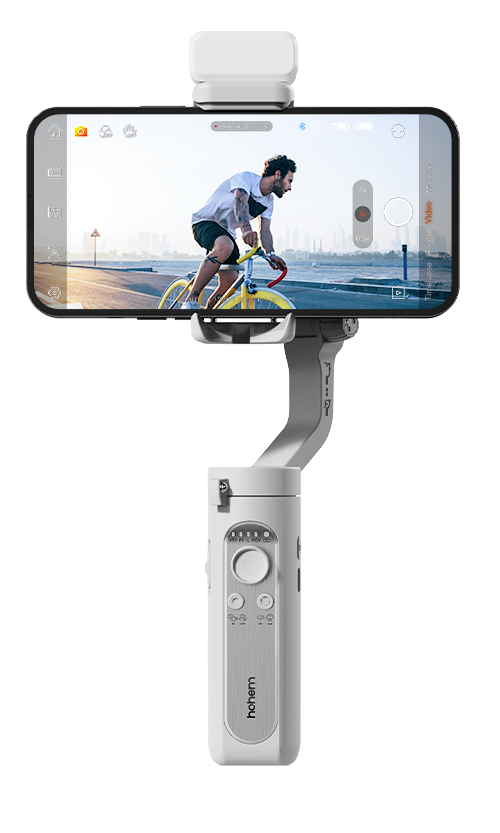
Check whether the phone clamp is level. If not, press the M button 5 times to enable auto-calibration. If the clamp is level, but the smartphone camera is not on level, remove the smartphone case or re-clamp the smartphone.
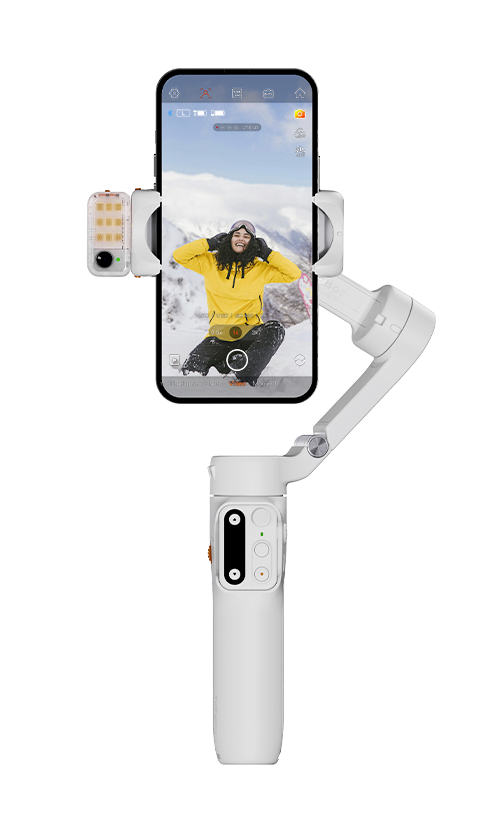
A. Mode Button/Power Button
① Long press: Power on/off
② Single press: Switch the working mode
③ Double press: Enter/Exit standby mode
④ Press five times: Enter auto calibration
B. Joystick
① Push up/down: Tilt up/down
② Push left/right: Pan left/right
C. Function Button
① Single press: Switch between landscape and portrait mode
② Double press: Recenter the gimbal
③ Triple press: Inception mode
④ Long press: Battery level
D. Shutter Button
① Single press: Take photo, start/end video (requires Bluetooth connection)
② Double press: Photo/Video switch (available exclusively through Hohem Joy APP and some Android phones via Bluetooth connection)
③ Triple press: Front/Rear camera switch (available exclusively through Hohem Joy APP and some Android phones via Bluetooth connection)
E. Zoom Slider
Push up: Zoom in (available exclusively through Hohem Joy APP and some Android phones via Bluetooth connection)
Push down: Zoom out (available exclusively through Hohem Joy APP and some Android phones via Bluetooth connection)
A. Make sure that you have installed the smartphone before turning it on.
B. It might be caused by improper smartphone installation. Please ensure that the smartphone is properly clamped and the back of the phone is in close contact with the clamp's padding.
C. If the issue persists, try powering off the gimbal, disassemble and reassemble the smartphone or camera, and then power the gimbal on again.





 Outros idiomas








Atendimento telefônico
US+1 (888) 965 8512
Inscreva-se
简体中文 English Deutsch Italiano 日本語 한국어 Français Español Pусский Português